Gate System Documentation and Pricing
Complete equipment inventory, pricing, and documentation for the Campbell HOA gate system
TOTAL SYSTEM COST
$0.00
One-time investment
0 total items
Cost per homeowner (4 homes)
$0.00
MONTHLY RECURRING
$19.00
Web Hosting + Domain
per month
Includes SSL cert
Hardware Cost Breakdown
$0.00
Contractor / Labor Breakdown
$0.00
Recurring Cost Savings
Old System Recurring Costs (Eliminated):
New System Recurring Costs:
Why is web hosting required? CampbellHOA.com is the central platform that allows all homeowners to interact with the gate system — opening, closing, scheduling, viewing the gate log, and managing access. Without the web server, there is no shared interface for gate control, no SSL certificate for secure connections, and no way to host the dashboard, documentation, or AI-powered features. The hosting fee is Phil's actual cost passed through at zero markup.
Homeowner Reimbursement Plan
The entire gate system — including all hardware, installation, and the pedestrian gate modification — was funded by Phil Blancett (4365 North Campbell). No lump-sum payment is required from any homeowner.
Total System Investment
$0.00
Per Homeowner Share (1/4)
Balance Owed to Phil (3/4)
$0.00
How Reimbursement Works:
No charge for Phil's labor: All of Phil's time is provided at no cost to the HOA. Only hardware and contractor expenses are included in the system total above. Below is an approximate breakdown of the donated labor and its market value.
Donated Labor Breakdown
~$9,500+ value
$0 charged
CampbellHOA.com full-stack development: responsive site design, equipment inventory system with dynamic cost tracking, gate control web interface with logging, AI-powered help system, fob pairing guides, reimbursement calculator, photo galleries, contractor/receipt management, server deployment, SSL, Nginx configuration, and ongoing updates.
OCR pipeline development and processing of 8 equipment manuals (214 pages) into searchable markdown using AI vision models. Includes pipeline scripting, image optimization, quality validation, and integration into the website.
Installation of 4 security cameras, network switch and equipment setup, cable management, gate motor configuration, DoorKing panel programming, MyQ setup, and all indoor/outdoor networking across multiple site visits.
Equipment research and sourcing, price comparisons, vendor coordination, contractor scheduling, system planning, documentation review, and ongoing project management.
Market rates: Web dev $125/hr (national avg for full-stack) · Low-voltage install $85/hr
How the System Works
Understanding the Campbell Gate System components and operations
System Overview
The Campbell Gate System consists of two LiftMaster motors that control the gates' opening and closing, connected to a DoorKing 1835 panel for access code management. The system has been modernized with local control, eliminating monthly subscriptions and phone line dependencies.
✓ OLD SYSTEM ELIMINATED
- • Broken LCD panel (10+ years old, unreadable)
- • Phone line dependency for calls
- • Monthly DoorKing subscription
- • Internet connection to DoorKing servers
✓ NEW IMPROVEMENTS
- • Four G4 doorbell cameras for visual verification
- • Local code management via TCP/IP
- • Z-Wave hold-open functionality
- • Web interface with logging
- • MyQ app integration
- • AI license plate detection
- • AI delivery vendor auto-open (USPS, FedEx, UPS, Amazon)
Network Topology
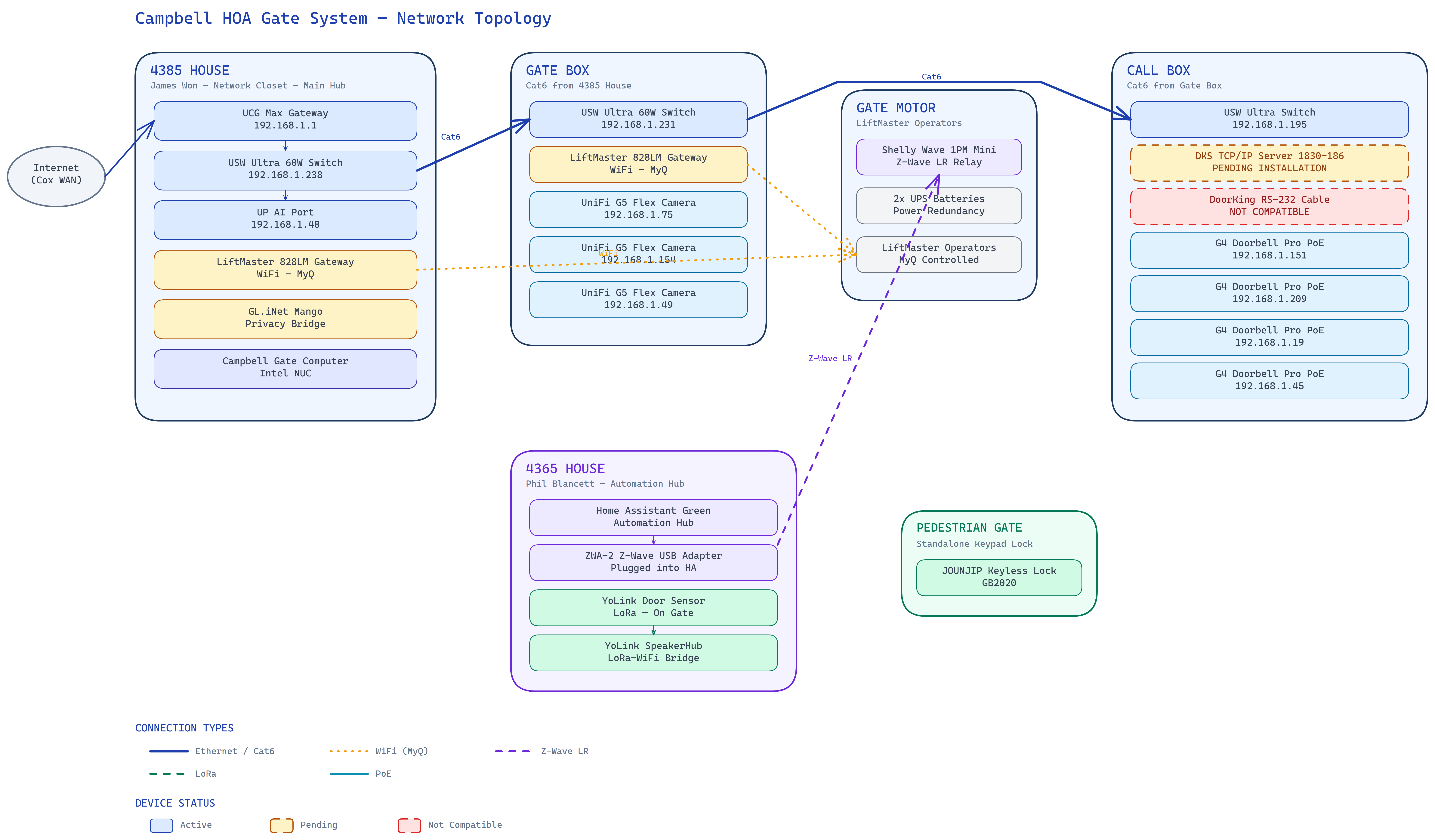
Open in ExcalidrawHow all gate system devices connect across 4 physical locations — from the house network closet through the gate box and motor to the call box.
Action Required — Final Step to Complete the System
The gate system is fully operational except for one critical piece: the TCP/IP connection between the DoorKing 1835 call box panel and the network has not been established yet. This connection is needed to remotely manage gate access codes.
What this means right now:
- • Gate codes cannot be changed or deleted. The old phone line has been disconnected, so the only way to update codes on the DoorKing panel is through the TCP/IP connection.
- • If a gate code is compromised or shared with unauthorized people, there is currently no way to revoke it.
- • All existing codes still work — they just can't be managed until this connection is made.
What's needed:
- • A professional gate company needs to come on-site to troubleshoot and complete the TCP/IP connection at the call box.
- • The hardware is already in place — the DKS TCP/IP Server (1830-186), the RS-232 cable (1830-170), and Ethernet at the call box are all purchased and ready.
- • The gate company just needs to make the final connection between the DoorKing board and the TCP/IP server.
- • Once connected, all gate codes can be managed remotely from the Campbell Gate Computer via the network.
How It Works Now
For Visitors
- → Visitor arrives at gate and selects property owner on call box
- → G4 doorbell camera rings homeowner
- → Homeowner sees visitor on camera
- → Homeowner opens gate via MyQ app
- → Gate automatically closes
Delivery vehicles from UPS, FedEx, DHL, and USPS are automatically detected by AI camera recognition. The gate opens and holds open for 2 minutes to allow delivery, then closes automatically.
For Residents
- → AI Car Recognition: Resident vehicles are memorized — gate opens automatically on approach
- → Access Code: Enter personal code on call box keypad
- → MyQ App: Open gate from phone (shared access)
- → Service Codes: Mailman, trash services use designated codes
- → Gate opens and automatically closes after passage
Hold-Open Mode
- → Web Interface: Visit campbellhoa.com/gate.html
- → Click "Toggle Hold-Open" to open gate
- → Gate stays open for scheduled time
- → Toggle again to close, or uses Python automation for scheduling
- → All actions logged for security
Access Methods
MyQ App
Shared access for all homeowners. Open and close gate from anywhere. Automatic close feature.
Web Interface
Access at campbellhoa.com/gate.html for hold-open control with activity logging.
Access Codes
Personal codes updated locally via TCP/IP connection. No internet required.
Doorbell System
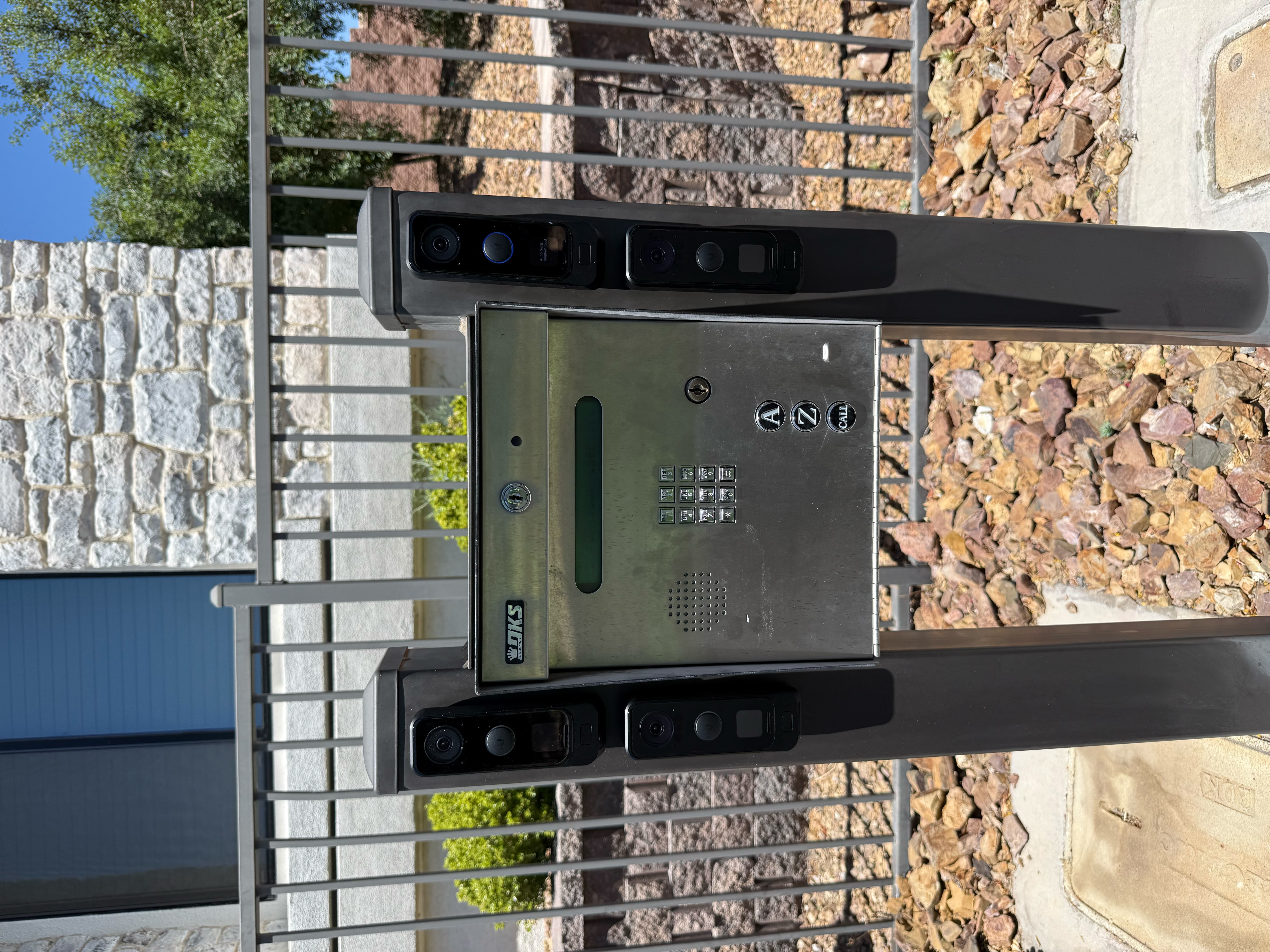
Four G4 cameras at call box. See visitors before granting access.
Access Code Management & Programming
(Click to expand)
No Monthly DoorKing Service Required
The system is now fully independent from DoorKing's cloud service. All access code management and programming is done locally on your network — no internet connection or monthly fees required.
How to Edit Access Codes
-
1
Connect to 4385 House Network
Must be physically at the gate location (4385 house) or connected to the gate network via the GL.iNet router bridge.
-
2
Launch DoorKing Programming Software
Available on the Campbell Gate Computer (NUC) at 4385, or download from Documentation section below.
-
3
Connect via TCP/IP
Software connects to DoorKing 1835 panel through the DKS 1830-186 RS-232 to Ethernet converter on the local network.
-
4
Edit Codes & Settings
Add, remove, or modify access codes for residents and guests. Changes take effect immediately.
Understanding Two Different "Hold Open" Methods
DoorKing "Hold Open"
Via DoorKing programming software interface
- • Requires DoorKing software connection
- • Must be on 4385 house network
- • Disables keypad entry temporarily
- • Used during programming sessions
gate.html "Hold Open"
Via Home Assistant + Shelly relay (recommended)
- • Access from anywhere via web interface
- • Local Z-Wave dry contact control
- • Keypad codes still work
- • Activity logging & scheduling features
Tip: For everyday use, the gate.html method is recommended. It's accessible remotely, doesn't interfere with keypad operation, and includes logging. The DoorKing software "hold open" is primarily used during code programming sessions.
Technical Details
(Click to expand)
Code Management
- • DoorKing 1835 panel with TCP/IP connection
- • DKS 1830-186 RS-232 to Ethernet converter
- • Local code updates from 4385 computer
- • No internet or DoorKing server required
Hold-Open System
- • Shelly Wave 1PM Mini Z-Wave LR relay
- • Home Assistant Green at 4365 address
- • Z-Wave long-range dry contact control
- • Python automation for scheduling
Camera System
- • Four UniFi G4 Doorbell Pro PoE cameras
- • UniFi Protect AI Port for video processing
- • Stable, requires minimal maintenance
- • Periodic updates and occasional reboots
Network Infrastructure
- • UniFi switches and networking equipment
- • PoE for cameras and devices
- • Ethernet connectivity throughout
- • Standard networking knowledge applicable
Setup Guides
Step-by-step instructions for remote fobs and MyQ app access
How to Pair a LiftMaster Remote / Fob
Note: The new gate system (Home Assistant, MyQ, cameras, scheduling) does not affect remote fob functionality in any way. Remotes pair directly to the LiftMaster gate motor using the motor's built-in learn button. If you prefer the old-school method of using a physical remote/fob to open the gate, you can pair one yourself by following these steps.
Step-by-Step Pairing Process:
The LiftMaster motor is located at the gate. You'll need physical access to it.
Remove the outer protective cover from the LiftMaster motor unit to expose the panel area.
Behind the cover, there is a plastic panel held by two screws. Remove these to access the circuit board with the learn button.
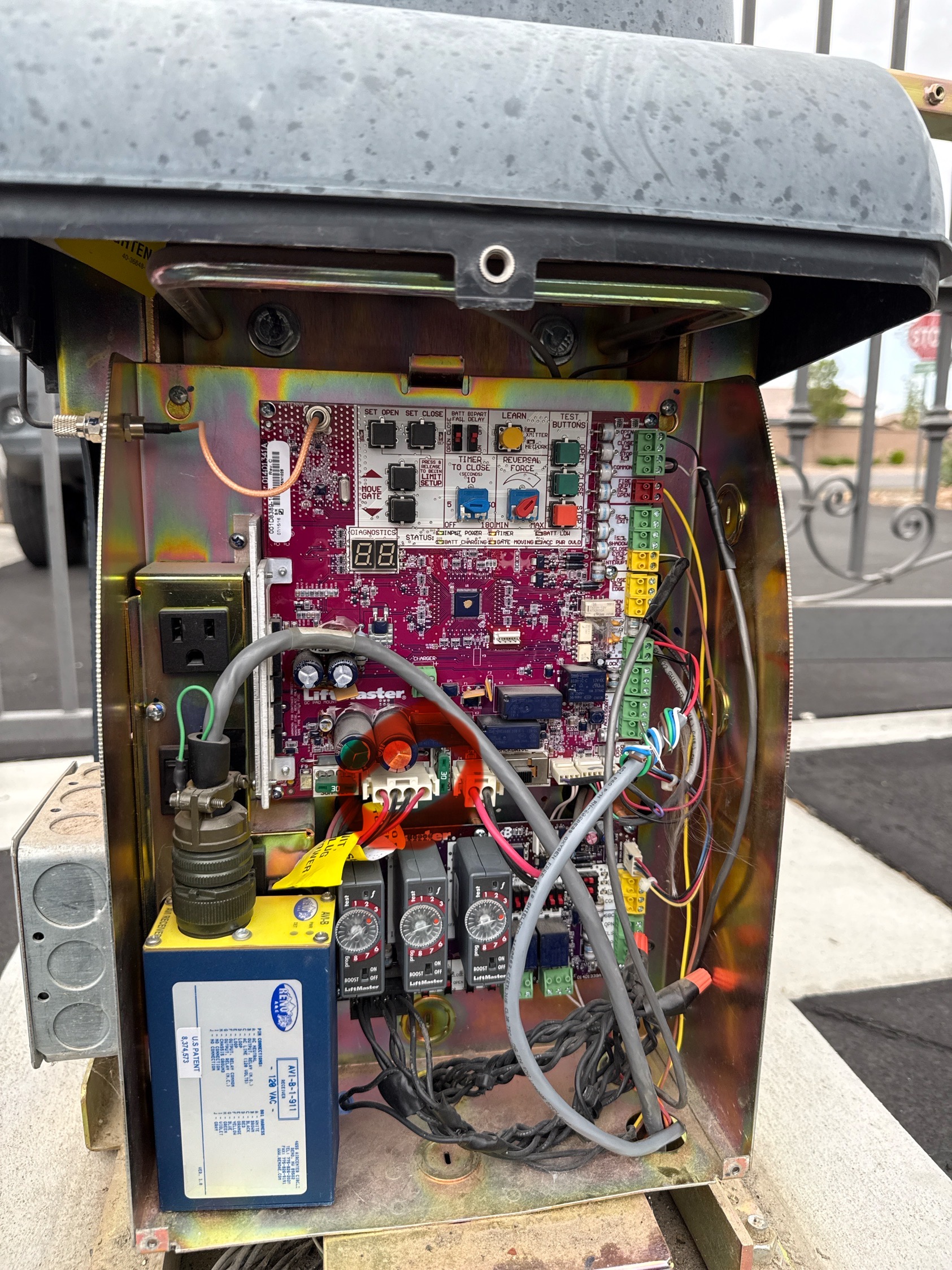
Find the round yellow learn button on the circuit board. This is a Security+ 2.0 system — the yellow button and yellow antenna confirm this.
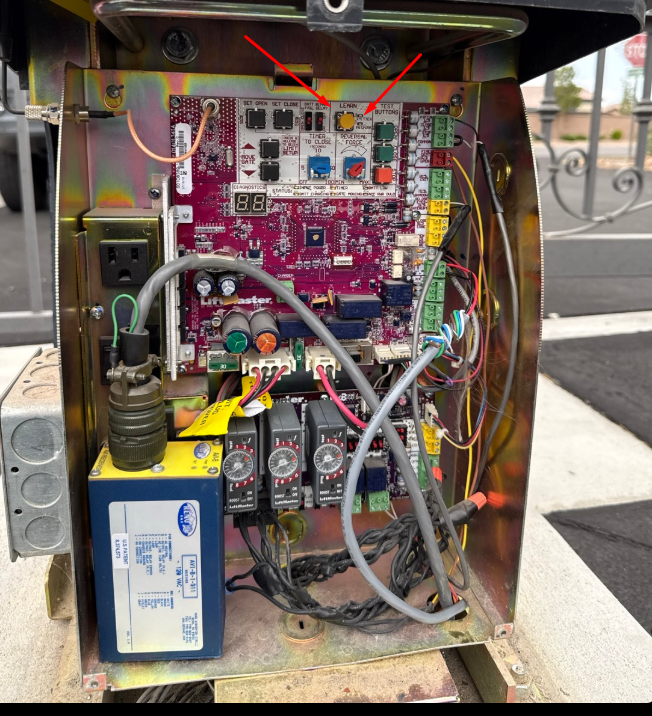
Click photo to enlarge. Red arrows indicate the yellow LEARN button location.
The LED indicator light near the button will glow steadily. You now have 30 seconds to complete the next step.
Point the remote at the motor and press the button you want to use. Hold it for 3 seconds. The LED on the motor will turn off and/or the motor lights will blink — this confirms pairing was successful.
Replace the two screws on the plastic panel, then reattach the motor cover.
Press the button on your remote to verify the gate responds. You're done!
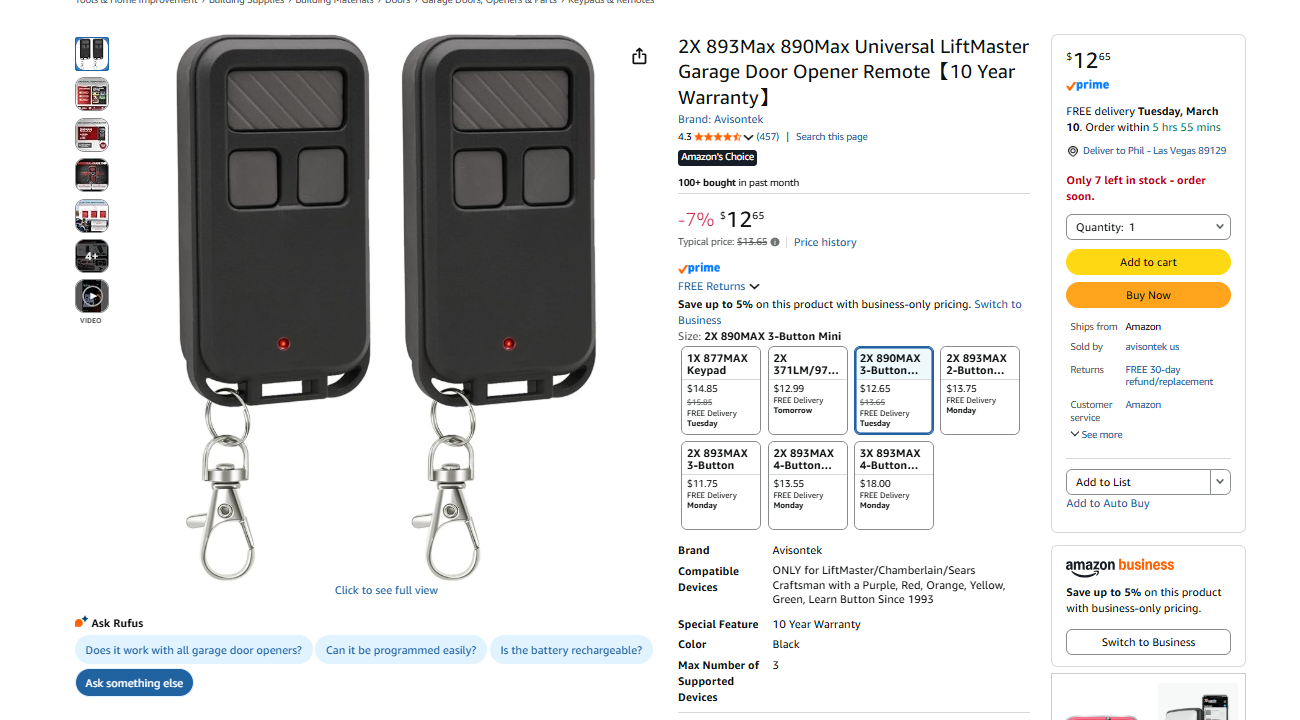
Compatible remotes: Any LiftMaster Security+ 2.0 remote with a yellow learn button — e.g., 891LM (1-button), 893LM (3-button), 893Max. Available on Amazon starting around $12.
How to Get Your Own MyQ App Access (Independent from Phil's Account)
Important: This is a different process than pairing a physical remote fob. The remote fob pairs directly to the gate motor's learn button (see above). The MyQ Hub pairs to your phone app over your WiFi network — it does not use the learn button on the motor.
Currently, all homeowners share MyQ gate access through Phil Blancett's account. If you'd like your own independent MyQ login and password, you'll need to purchase your own LiftMaster 828LM Internet Gateway and pair it with your own MyQ account. This gives you full personal control of the gate from your phone without being on anyone else's account.
The 828LM connects via Ethernet only (no WiFi). You can connect it to your own home network, or co-locate it in James Wan's network closet near the gate. As long as the 828LM can reach the gate motor's signal, it will work.
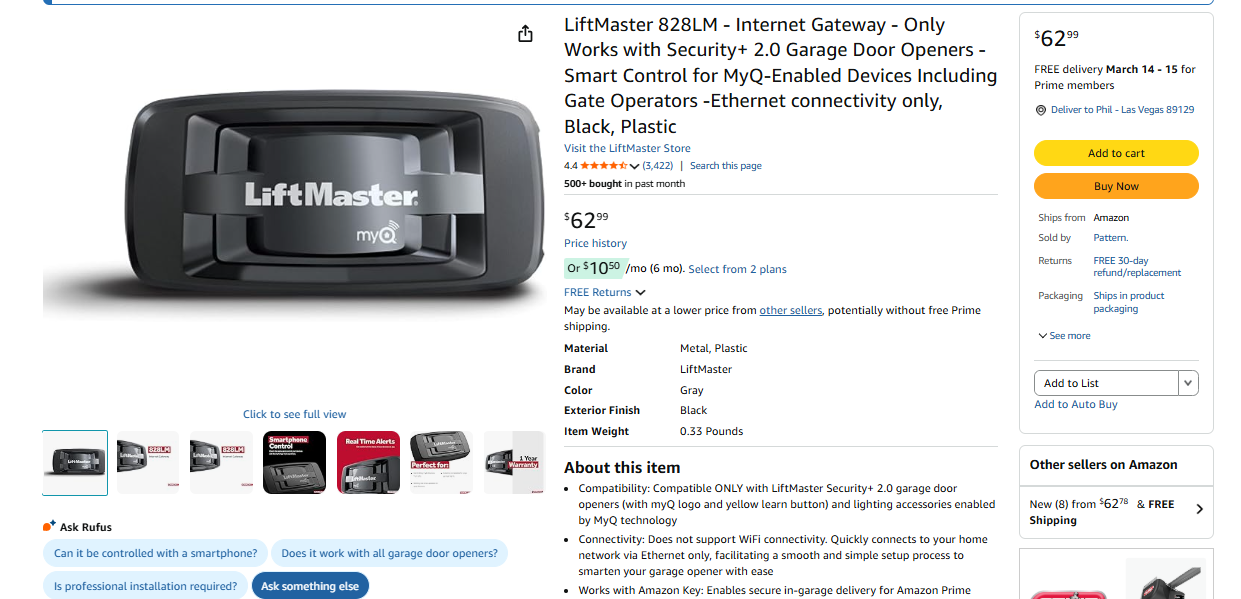
Step-by-Step MyQ Hub Setup:
Available on Amazon for $62.99. Make sure it's the 828LM model — it's the only one compatible with Security+ 2.0 gate operators.
Available for iOS and Android. Create a new account with your own email and password — this will be your independent login.
Plug an Ethernet cable from your router into the 828LM. The hub requires a wired connection — it does not have WiFi. Power it on.
Open the MyQ app → tap "+" to add a device → select "LiftMaster Internet Gateway" → follow the on-screen pairing instructions. The app will detect the 828LM on your network.
You must be physically at the gate motor for this step. This is a different process than pairing a remote fob:
- Press and release the LEARN button on the gate motor once — the motor will beep and the green XMITTER LED will light up.
- Immediately press and hold the LEARN button again on the gate motor for approximately 6 seconds until the green XMITTER LED begins to flash, then release.
- The 828LM will pair with the motor wirelessly via Security+ 2.0 radio signal. The motor will beep to confirm successful pairing.
Note: This is a quick press-release, then press-and-hold sequence on the motor's learn button — not a double-tap. Consult the 828LM manual for your specific gate operator model if needed.
Once paired, try opening and closing the gate from the app. If the gate responds, you're all set with your own independent MyQ access.
Proximity note: The 828LM must be within radio range of the gate motor for the initial pairing and for ongoing use. If you install it in your home, test from there first. If the signal doesn't reach, the unit can be co-located in James Wan's network closet which is closer to the gate.
Troubleshooting & Support
Common issues, fixes, and contact information
Troubleshooting Guide for Homeowners
(Click to expand)
MyQ App Not Working
- 1. Check if you have shared access to the MyQ account
- 2. Ensure phone has internet connection
- 3. Try logging out and back in to MyQ app
- 4. Verify LiftMaster 828LM gateway has power (check at gate box)
- 5. Power reset the 828LM at the Gate Box
Doorbell Cameras Not Working
- 1. Check if UniFi Protect system is online (accessible via network)
- 2. Try rebooting the UniFi switch at the call box
- 3. Verify cameras have power (PoE from switch)
- 4. Check if doorbell app notifications are enabled on phone
- 5. UniFi cameras are very stable - if offline, likely power or network issue
Access Code Not Working
- 1. Verify you're entering the correct code
- 2. Try using MyQ app as alternative access method
- 3. Contact HOA to verify code is still active in system
- 4. Codes are managed locally - no internet required for them to work
- 5. DoorKing panel should respond even if LCD is broken
Gate Stuck Open or Closed
- 1. Check if hold-open mode is active (visit campbellhoa.com/gate.html)
- 2. Try toggling hold-open mode off via web interface
- 3. Check for physical obstructions blocking gate movement
- 4. Verify LiftMaster motors have power
- 5. Contact professional if motors are making unusual sounds
✓ System Maintenance Tips
- • UniFi cameras: Very stable, just update firmware periodically and reboot if needed
- • Most networkers can troubleshoot UniFi equipment with standard networking knowledge
- • Keep MyQ app updated on your phone for best performance
- • Web interface at campbellhoa.com/gate.html logs all gate activity for review
- • System is designed to work entirely locally - no cloud dependencies
Technical Support & Emergency Contacts
Professional support for gate system issues
Elite Gate Controls
Don Harrison
(702) 882-1950Specialty:
- • Gate motors & mechanical issues
- • DoorKing panel & access control
- • Gate hardware & repairs
- • LiftMaster motor problems
When to call:
Gate not opening/closing, motor making unusual sounds, gate stuck, access codes not working, mechanical failures
Lancelot
Nevada License #0088425
(702) 996-7585 mylancelot.comSpecialty:
- • Network infrastructure
- • Cat6 cabling & wiring
- • UniFi cameras & switches
- • Internet connectivity issues
When to call:
Cameras offline, network connectivity problems, cable damage, switch issues, UniFi equipment problems
DoorKing
Technical Support Contact: Jeff Voss
Jvoss@doorking.com www.doorking.com Technical Support PortalSpecialty:
- • DoorKing 1835 telephone entry
- • Access control systems
- • TCP/IP Server support
- • Programming & configuration
When to contact:
DoorKing equipment technical questions, software issues, programming guidance, factory support for 1835 system
Emergency Information
Life-Threatening Emergency
Call 911 immediately
Gate Blocking Traffic
Unbolt the swing arm to open gate manually, then contact Tech Support or Elite Gate Controls
MyQ or Web Issues
Check troubleshooting guide above before calling
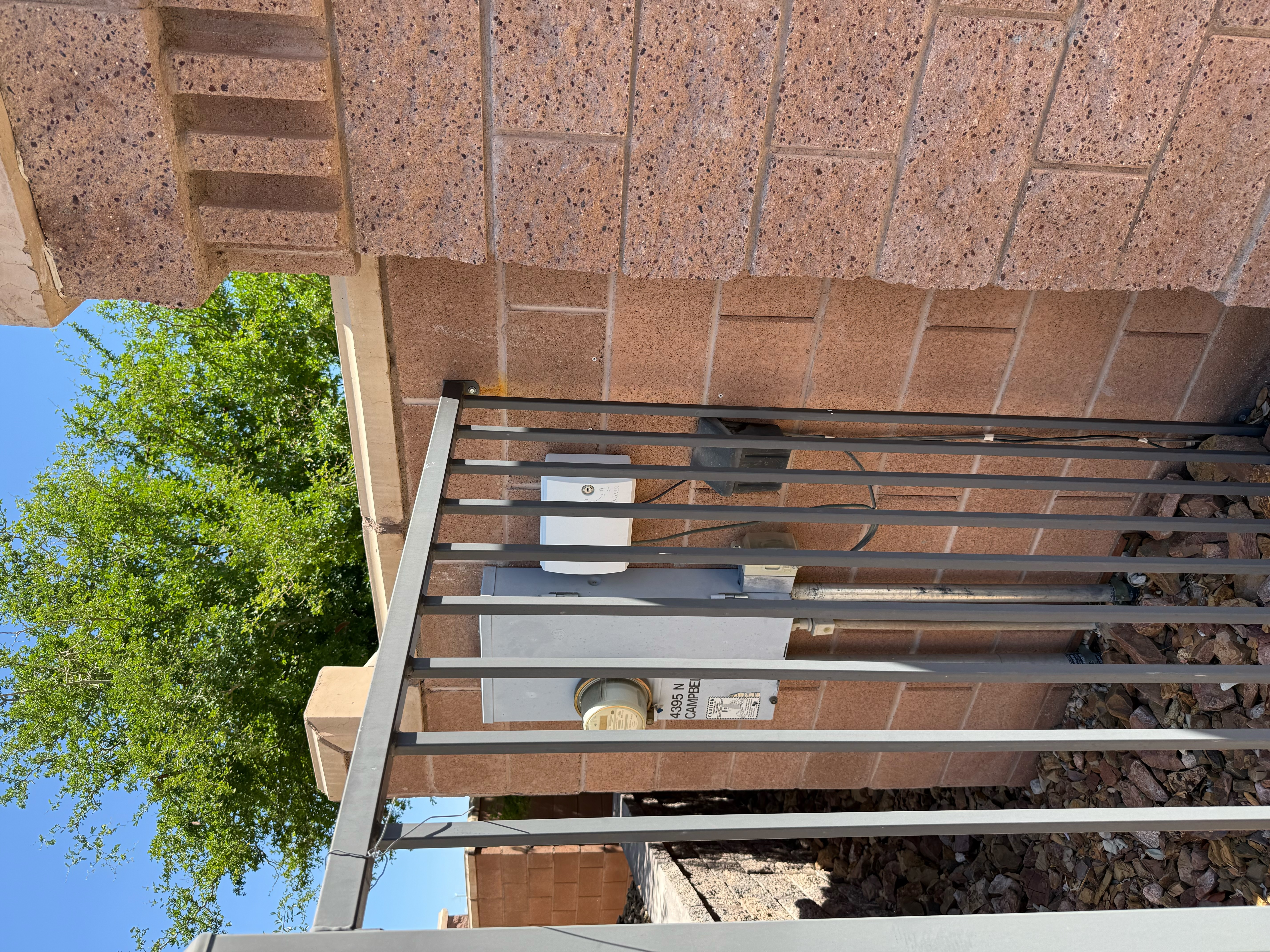
4385 House (Network Closet)
Main network gateway and control center
Gate Box
Gate cameras and local networking equipment
Reference Photos
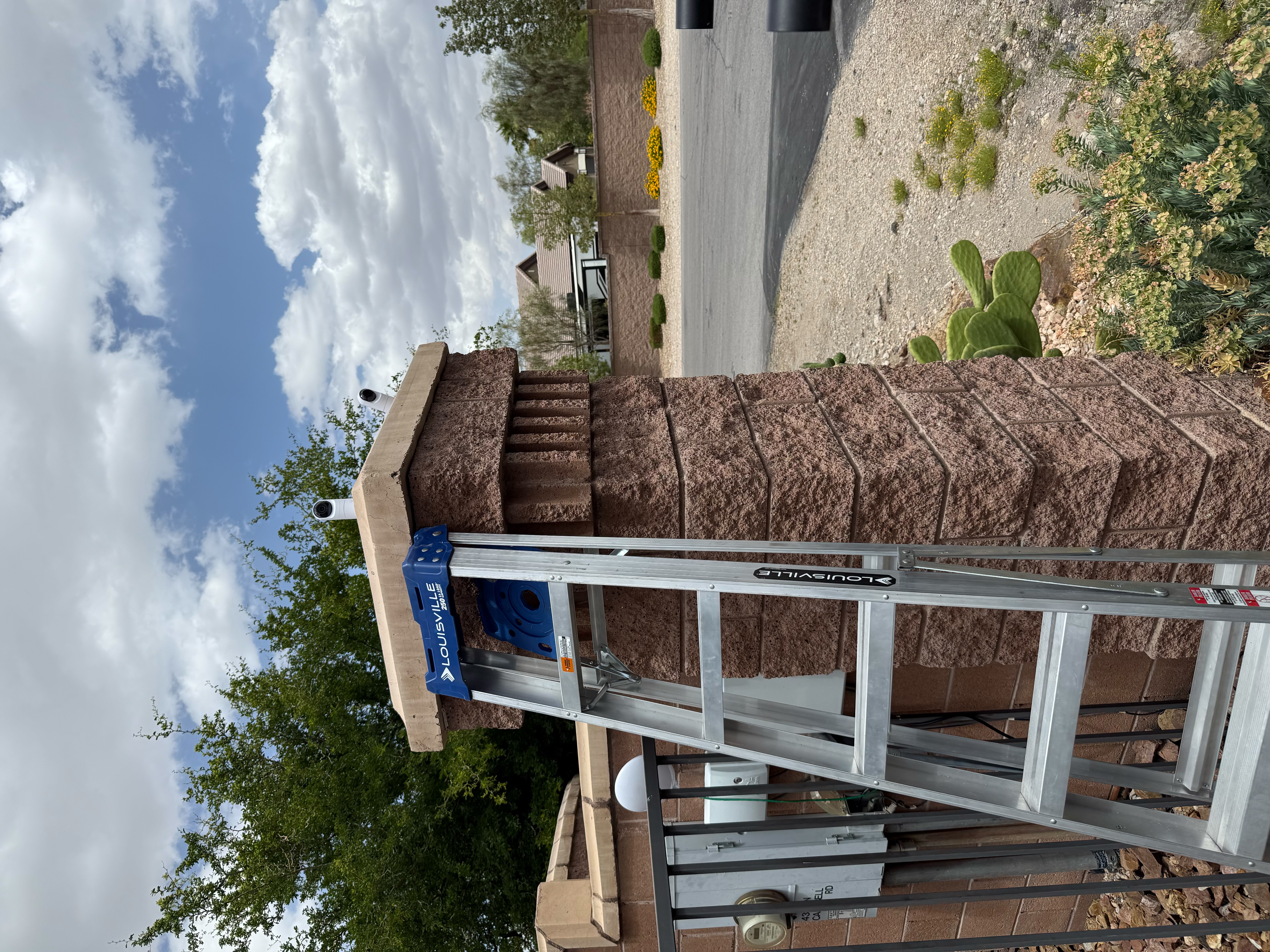
Gate Motor & Gate Area
Motor controller and relay switch
Reference Photos
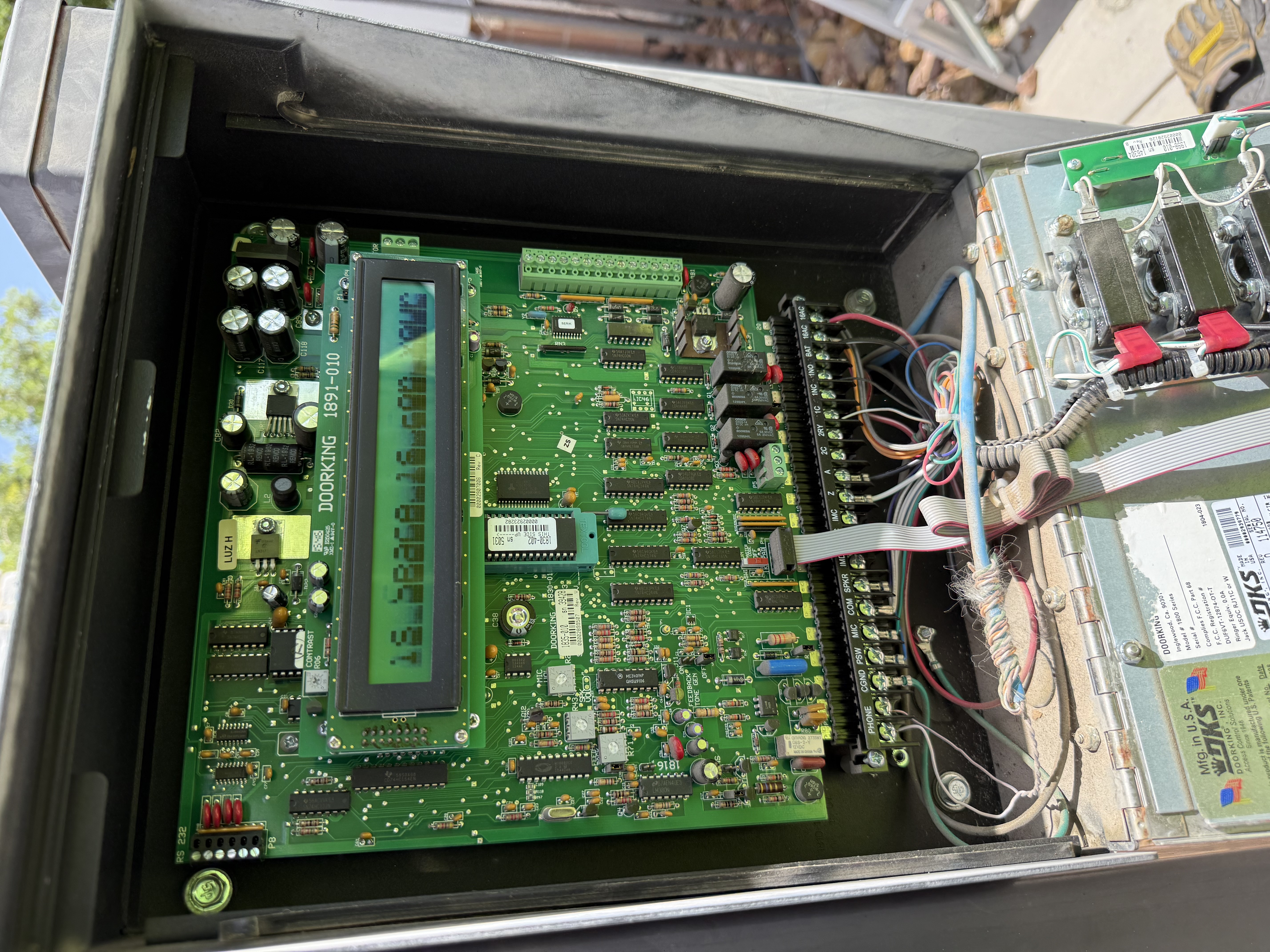
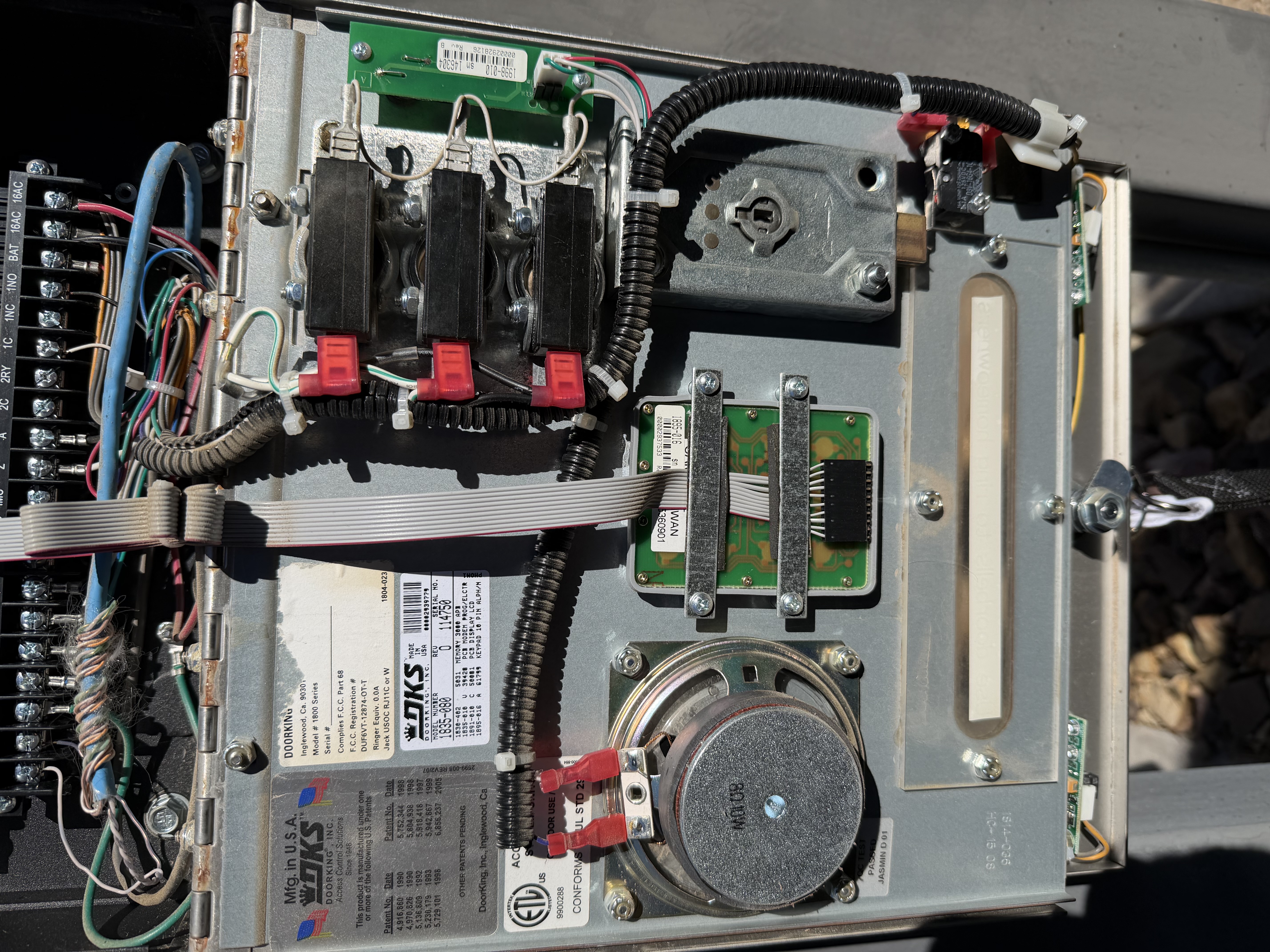
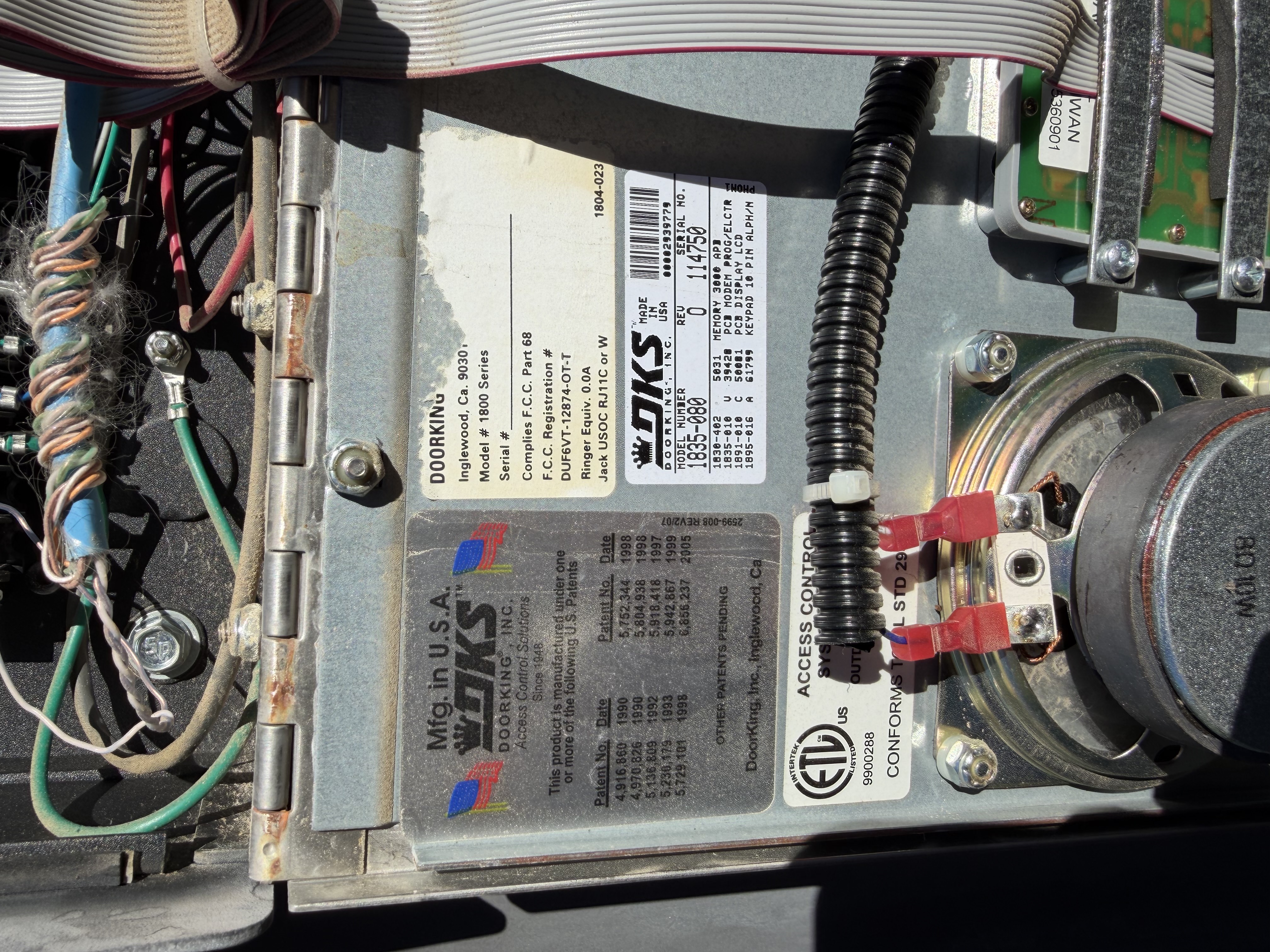
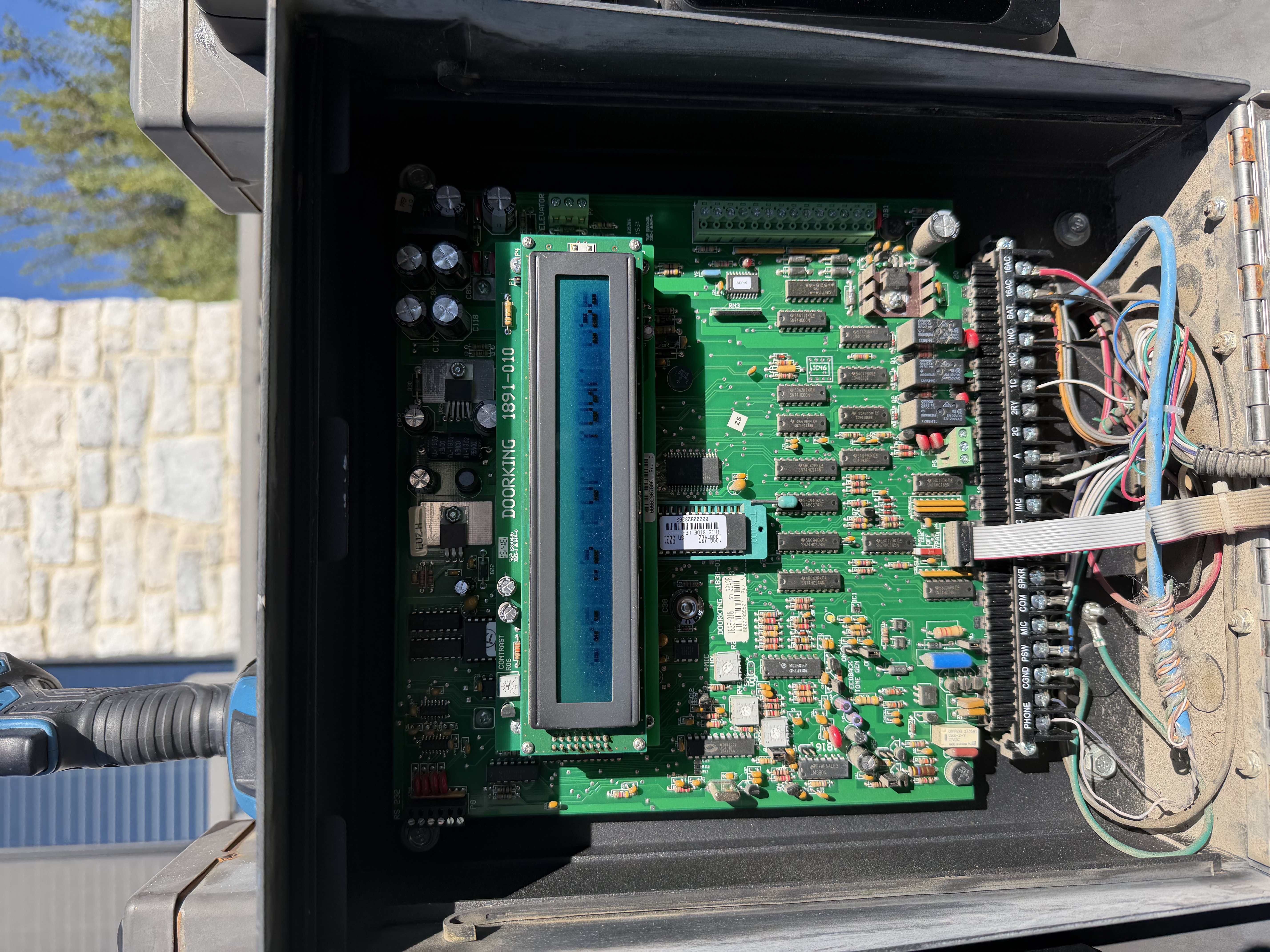
Call Box
Entry cameras and local switch
Reference Photos
4365 House
Additional equipment location
CampbellHOA.com Web Hosting
Domain and hosting services for gate system SSL connectivity
Pedestrian Gate
Walk-through gate access control
❗ Ask AI about hardware, pricing & setup! This prompt loads the full page — equipment list, costs, per-homeowner breakdown, and system configuration.
This prompt covers this page — hardware, pricing, and setup.
📖 Ask AI about the equipment manuals! Full OCR'd manuals for DoorKing, LiftMaster, and TCP/IP setup — searchable and AI-readable.
This prompt covers the full equipment manuals — 214 pages of wiring diagrams, programming instructions, and troubleshooting guides.
Contractors & Services
Installation, maintenance, and professional services
Receipts
Purchase receipts and expense documentation
Documentation & Resources
Manuals, diagrams, photos, and software for the gate system
Searchable Equipment Manuals (OCR)
Full-text versions of all gate equipment manuals — searchable, copy-paste ready, and AI-readable
These are text-extracted versions of the PDF manuals above. Use them for quick text searches (Ctrl+F), copying wiring specs, or feeding to an AI assistant for troubleshooting help.